Time and display settings
Connect the clock over Bluetooth first.
Set the correct time
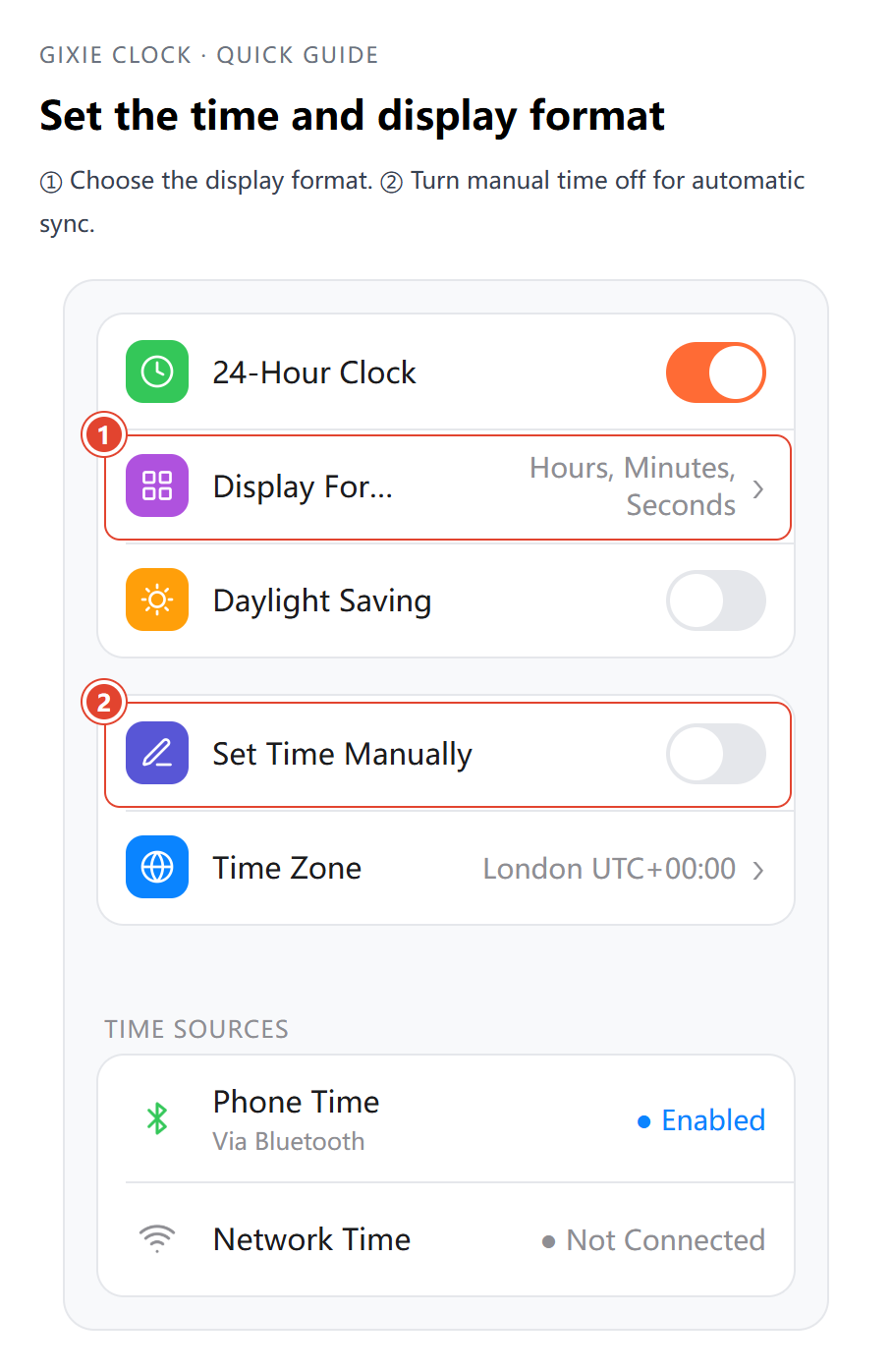
The clock automatically synchronizes with your phone when Bluetooth connects. If the time is correct, you can use it immediately. To change the time zone or display preferences:
- Tap Setting → Time Settings.
- Turn off Set Time Manually for normal local time.
- Tap Time Zone, then search for and select your city or region.
- Set Daylight Saving as required for your location and season.
- Choose whether to use the 24-Hour Clock option and check the display.
Phone Time and Network Time show status; they are not synchronization buttons. For automatic internet time, connect Wi-Fi. If Configure Wi-Fi → appears in Time Settings, it also opens setup directly. Check network-time status under Time Sources.
Set a custom date and time
- Open Setting → Time Settings and enable Set Time Manually.
- Tap Date and choose the date.
- Tap Time, set hours, minutes and seconds, then tap Confirm.
- Check the clock's display.
In manual mode, Network Time shows Disabled. To return to automatic time, turn off Set Time Manually and check the time zone. You can also adjust the time using the physical buttons.
Show time, date or alternating formats
Open Setting → Time Settings → Display Format.
| App option | Six-tube display |
|---|---|
| Hours, Minutes, Seconds | Two digits each for hours, minutes and seconds |
| Year / Month / Day | Last two digits of the year, month, day |
| Month / Day / Year | Month, day, last two digits of the year |
| Day, Hour, Minute | Day of month, hours, minutes |
For one format, turn off Automatic switching and choose it.
To alternate formats, enable Automatic switching, choose 1 min, 2 min, 5 min or Custom, then select the formats to include. For a custom interval, enter it and tap Save interval. Selecting only one format keeps that format displayed.
Choose a clock mode
Open Light → Clock mode. To use a single mode, turn off Cycle display, then tap the mode card.
| Mode | What it does |
|---|---|
| Clock | Shows the selected time/date format using the Tube colour settings |
| Clock–Whole rainbow | Shows time/date with a whole-display rainbow |
| Clock–Individual rainbow | Shows time/date with individual tube rainbow colors |
| Digit refresh mode | Cycles through 0–9 |
| Worldline mode | Changes the digits, then settles each tube on a built-in digit group |
| Custom digits mode | Displays the digit groups you enter |
| Network data mode | Displays your configured network data |
Tap the gear icon to edit a mode's settings. Tap the card itself to select its display mode.
Colors, brightness and display power
Open the Light tab.
- Fixed color: open Tube colour, choose Fixed colour, and return to Light. Tap the tubes above to select or deselect them, then drag the color-disc handle. For exact values, tap the pencil icon above the disc, adjust the color in Set colour, and tap Confirm.
- Rainbow colors: choose Whole rainbow gradient or Individual rainbow gradient under Tube colour.
- Brightness: drag the slider below the color disc. You can also change Global brightness in Setting → Brightness Settings.
- Display on/off: use the switch beside Power on the Light page.
Choose Clock mode to see your tube-color settings. Turning the display off does not disconnect power.
Schedule brightness
- Open Setting → Brightness Settings and set the usual Global brightness.
- Tap Add brightness period and set Start and End.
- Set Period brightness, tap Save, and check that the period's switch is on.
Periods repeat daily and may cross midnight. Enabled periods cannot overlap. Outside a period, global brightness applies. Use this to dim the clock at night, or a sleep schedule below to turn its display off.
Lighting effects
Open Light → Light effect and choose Digit transitions or Illumination effects.
- Digit transitions: None, Roll, Fade in, Whole refresh or Grouped carry. These apply to Clock and the two rainbow clock modes when the digits advance.
- Illumination effects: None, Wave, Breathing, Scanner, Pulse or Stacked wave. These continuously animate the display.
Choose None for the relevant effect to restore a static display.
Cycle through modes
- Enable Cycle display in Light → Clock mode.
- Tap the mode cards to select cycle members. Keep at least one selected.
- Set Mode switch interval. When using a custom interval, enter it and tap Save.
This cycles between modes such as Clock and Worldline. Display Format → Automatic switching instead alternates time/date formats. To keep showing the time, turn off both types of cycling, then choose Clock and Hours, Minutes, Seconds.
Display custom digits
- Open Light → Clock mode and tap the gear on Custom digits mode.
- Enter a complete six-digit number in each digit group, such as
001234. - Tap Add digit group for additional groups, up to eight in total.
- Tap Save, then tap the Custom digits mode card to display the numbers.
A single group remains displayed. With multiple groups, adjust Target interval. Zero seconds holds the current group; short intervals wait for the current animation to finish.
Schedule sleep
- Open Setting → Sleep Schedules and tap Add Schedule.
- Set the display-off time under Sleep and the display-on time under Wake.
- Tap Save and check that the schedule is enabled.
For example, Sleep 23:00 and Wake 07:00 turns the display off overnight. You can save up to three schedules.
During sleep, press ③ Function once to view the time temporarily. Turn off a schedule to cancel it, or open it and tap Delete Schedule to remove it.