App connection and Wi-Fi
First connection
- Power the clock, turn on your phone's Bluetooth and keep the phone nearby.
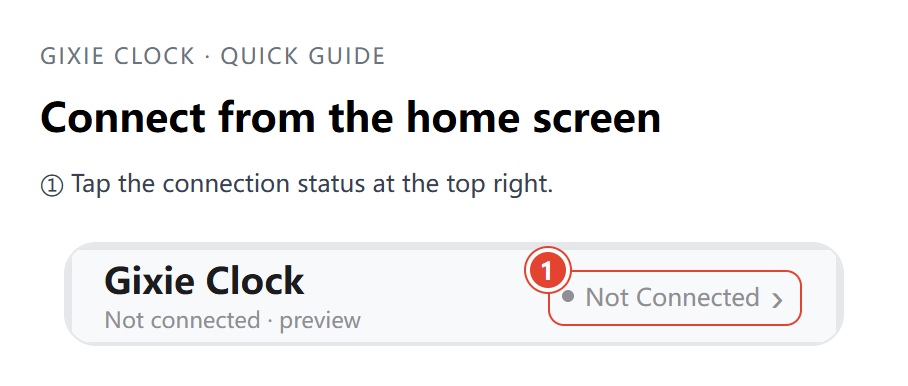
- Open Gixie Clock. Tap the Bluetooth connection status at the top right of the home screen (Not Connected) to open Bluetooth List.
- Allow Bluetooth access when prompted. The list automatically scans for nearby clocks.
- Tap your clock under Other Devices. If it is missing, tap the circular refresh icon beside that section.
- The app returns to the home screen when connected. Connected appears at the top right, and you can control the clock.
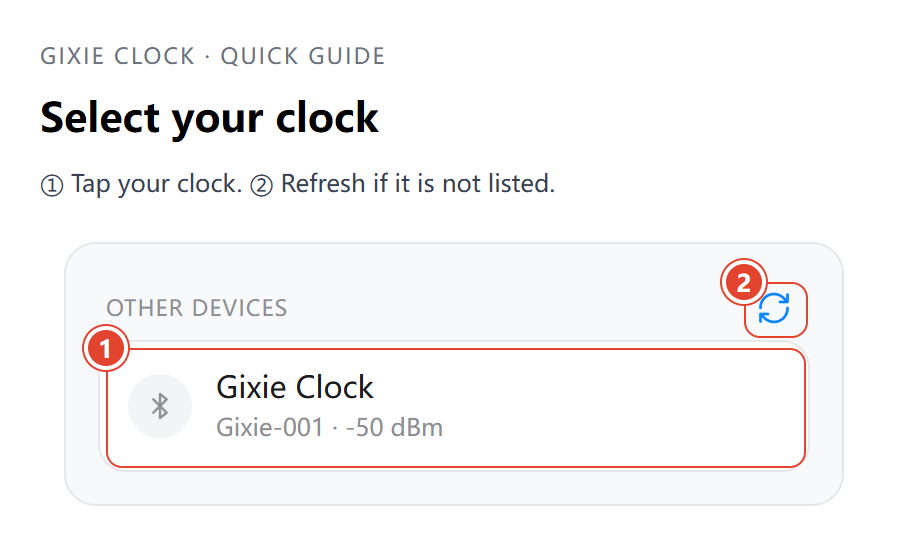
Choose your own clock's name. If several clocks are nearby, check which one you are connecting to.
Connect to Wi-Fi
Wi-Fi setup is optional. The clock works without Wi-Fi. Set the time through the app when you first use it. While powered, the clock continues to display the time and run saved alarms and sleep schedules.
Use Bluetooth to change time, colors, brightness, lighting effects and alarms from a nearby phone. Timer tools do not require the clock to be online; see More features for the Bluetooth requirements of the stopwatch and countdown.
| Feature | Does the clock need internet access? |
|---|---|
| Time/date display, saved alarms and sleep schedules | No |
| App controls and settings from a nearby phone | No Wi-Fi needed; use Bluetooth |
| Automatic network time synchronization | Yes; turn off Set Time Manually |
| Stock, cryptocurrency and other network data | Yes |
| Checking and downloading firmware updates | Yes; app controls still use Bluetooth |
You can skip Wi-Fi setup and add it later. Wi-Fi does not replace Bluetooth: keep your phone near the clock and connected over Bluetooth when using the app.
Set up the network
Connect over Bluetooth first, then:
- Tap Setting → Wi-Fi.
- Turn on User Wi-Fi and wait for OTHER NETWORKS to appear.
- Select your home's 2.4 GHz network. Tap the refresh icon if needed.
- Enter the Password, choose whether to enable Save Password, and tap Join.
- Wait for the network to appear under CONNECTED. Online features work when that network can access the internet.
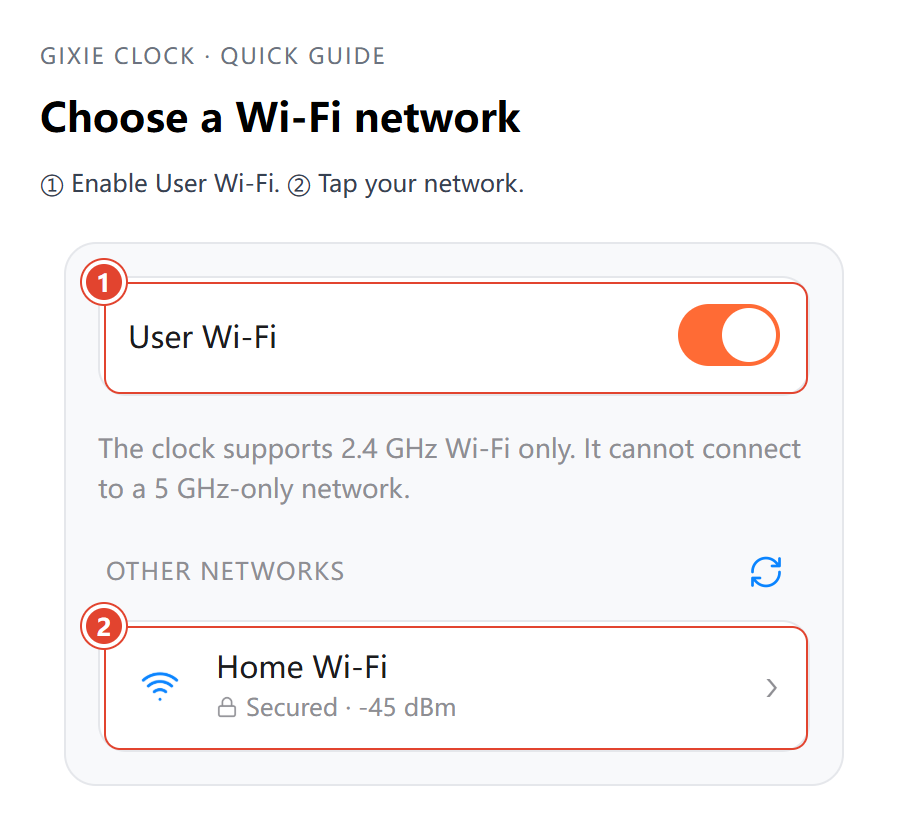
Your phone connects to the clock over Bluetooth; the clock goes online over Wi-Fi. The home screen's Connected status refers to Bluetooth. Check Setting → Wi-Fi for the network connection.
If 2.4 GHz and 5 GHz share one network name, you can normally select it directly. If connection fails, check that 2.4 GHz is enabled.
Change the network or password
Connect over Bluetooth, open Setting → Wi-Fi, select the new network under OTHER NETWORKS, enter its password and tap Join.
To remove the old network, tap it under CONNECTED, choose Forget This Network, then confirm Forget. You normally do not need a factory reset to change Wi-Fi.
Rename the clock
Open Setting → Device Name, enter an easily recognized name and tap Confirm. With multiple clocks, use names such as “Desk clock” and “Living room clock”.
Connect a different phone
On the original phone, tap the home screen's Bluetooth status to open Bluetooth List. Tap the connected clock under My Devices, choose Disconnect in Device Information, and confirm. Then follow the first-connection steps on the new phone.
Phone permissions
- iOS: allow Bluetooth access for Gixie Clock. If you previously denied it, enable the permission in your phone's system settings and scan again.
- Android: allow Bluetooth or nearby-device permissions. If your system also requests location permission or location services, follow that prompt.
For missing Bluetooth devices, see Troubleshooting. For Wi-Fi problems, use the checks below.
Supported Wi-Fi networks
The clock supports 2.4 GHz Wi-Fi only, not networks that provide only 5 GHz or 6 GHz. On a multiband router, enable its 2.4 GHz network.
| Network | Guidance |
|---|---|
| Home router, 2.4 GHz | Recommended: WPA2-Personal (WPA2-PSK), with AES if the router offers a cipher setting |
| Shared name for 2.4 GHz and 5 GHz | The clock uses 2.4 GHz. Normally no renaming is needed; try a separate 2.4 GHz network if connection fails |
| Phone hotspot | Use 2.4 GHz with compatible personal-password security; enable the phone's compatibility or 2.4 GHz option if available |
| Open network with no password | Supported if it does not require a web sign-in, SMS verification or acceptance page |
| Hidden network | Hidden names do not appear in the setup list. Enable network-name broadcasting before scanning |
| Public network with a sign-in page, or enterprise account/certificate authentication | Not supported by this setup flow; use ordinary home Wi-Fi or a compatible hotspot |
Wi-Fi troubleshooting
The network does not appear
- Check that the app is connected over Bluetooth and Setting → Wi-Fi → User Wi-Fi is on.
- Move the clock closer to the router and keep the phone near the clock. Tap refresh beside OTHER NETWORKS.
- Enable 2.4 GHz and network-name broadcasting on the router. A network visible to your phone may use a band the clock cannot access.
- If a shared-band network still does not appear, try a separate 2.4 GHz network and refresh again.
The network appears, but joining fails
- Check the network name and password, including capitalization and accidental spaces. If the password changed, enter the new one instead of reusing a saved password, then tap Join.
- Prefer WPA2-Personal / WPA2-PSK (AES). If a WPA3-only or other configuration fails, try a separate 2.4 GHz WPA2 network.
- Check the router's device limit and restrictions on new devices. Make sure automatic address assignment (DHCP) is enabled.
- If the old network is still under CONNECTED, open it, choose Forget This Network, confirm, then join again from OTHER NETWORKS. A factory reset is not needed just to repeat setup.
- Try a 2.4 GHz hotspot on another phone. If it works, check the original router's band, security and access restrictions.
Connected, but network time or data does not work
CONNECTED means the clock has joined the router; it does not guarantee internet access.
- Connect your phone to the same Wi-Fi and temporarily turn off mobile data to check that Wi-Fi itself works. If a sign-in page or SMS verification is required, use another network.
- For network time, open Setting → Time Settings, turn off Set Time Manually, and check Network Time under Time Sources.
- If only one data source fails, open its settings and tap Test. Check the inputs and error message; after a successful test, tap Save and use. A temporarily unavailable service does not necessarily indicate a Wi-Fi problem.
- Try another internet-connected Wi-Fi network or hotspot. If the problem continues, note the app's message and affected feature, then contact support. Do not share your Wi-Fi password.
You can continue using the clock and Bluetooth controls without Wi-Fi, and finish setup when you need the online features.