Buttons and everyday use
Use the app for everyday settings. The physical buttons are useful when your phone is not at hand.
Identify the three buttons
Face the front of the clock and match each button to the diagram. Every button reference includes its number and name; ①, ② and ③ match 1, 2 and 3 in the image.
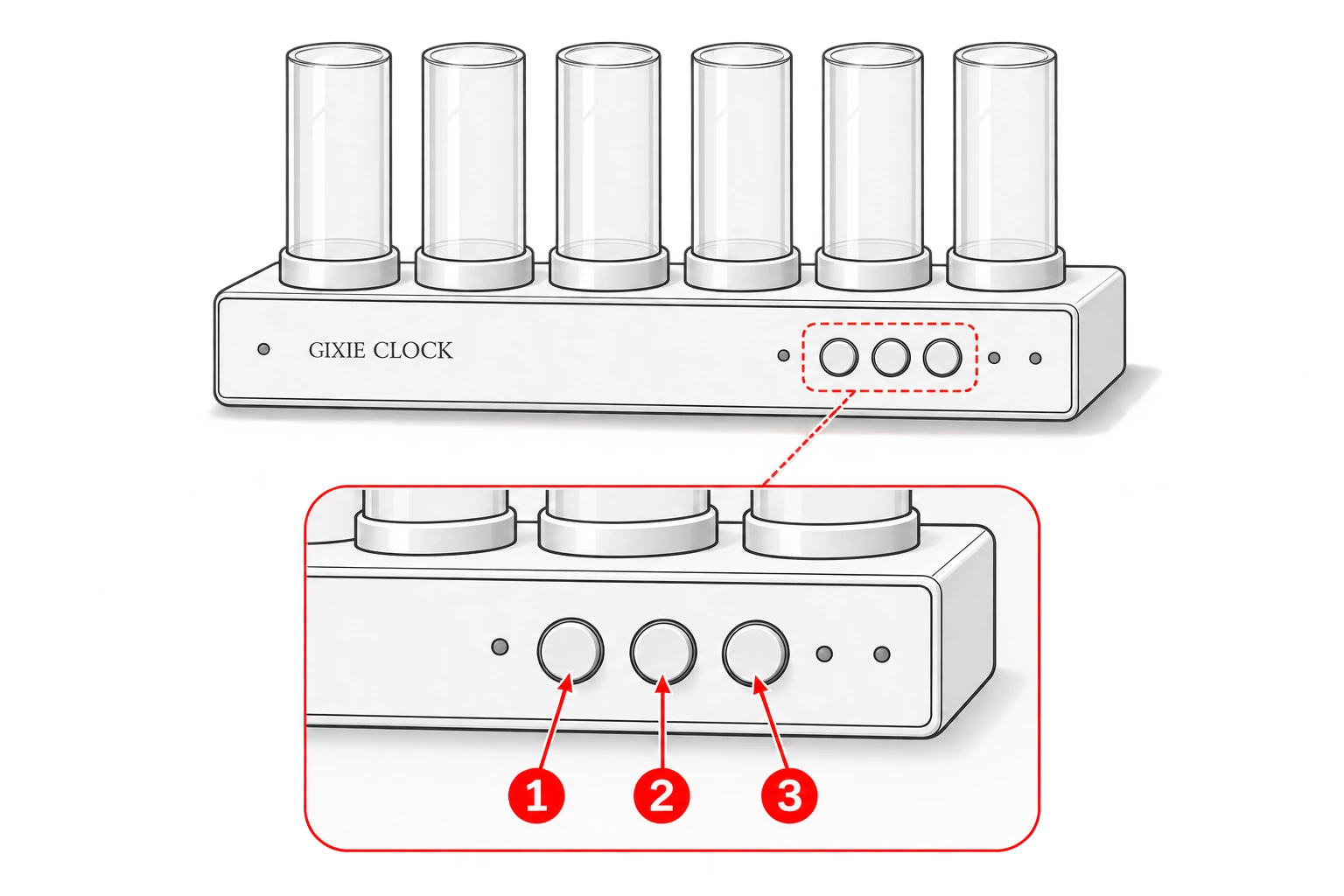
| Button | Main functions |
|---|---|
| ① Decrease | Decrease values when setting the time; cycle colors backward in fixed-color mode |
| ② Increase | Increase values when setting the time; cycle colors forward in fixed-color mode |
| ③ Function | Turn the display on or off, switch display modes, and enter or confirm time settings |
Click, double-click and hold
- Click: press and release once quickly.
- Double-click: press and release twice quickly.
- Long press: hold for about 1 second, then release, for the time-setting steps below.
- Continuous adjustment: hold ① Decrease or ② Increase and release at the desired value or color.
For everyday use, release ③ Function after about 1 second. Holding it for about 5 seconds enters the factory-reset warning; continuing to about 10 seconds triggers a factory reset. If you enter the warning by mistake, release before reaching about 10 seconds.
During normal display
| Action | Result |
|---|---|
| Click ③ Function | Turn the display on or off |
| Double-click ③ Function | Switch to the next display mode; when display cycling is enabled, move to the next mode in the cycle |
| While showing the time, hold ③ Function for about 1 second, then release | Enter time setting |
| In fixed-color mode, click ① Decrease / ② Increase | Cycle colors backward / forward |
| In fixed-color mode, hold ① Decrease / ② Increase | Adjust colors continuously; release to save |
Turning off the display does not disconnect power. Color adjustment applies only to fixed-color mode. During alerts, time setting or a Pomodoro session, use the instructions for that state below.
Set the time manually
First switch to the clock display showing the time. Make sure no alert or Pomodoro session is active.
- Hold ③ Function for about 1 second. Release when the two hour tubes turn white, then adjust the hours.
- Click ① Decrease to lower the value or ② Increase to raise it. Hold either button to adjust continuously.
- Hold ③ Function for about 1 second, then release to edit the minutes. Adjust with ① Decrease / ② Increase.
- Hold ③ Function again for about 1 second, then release to edit the seconds. Adjust with ① Decrease / ② Increase.
- Hold ③ Function for about 1 second, then release to confirm and save the time.
The pair currently being edited turns white. The sequence is hours → minutes → seconds → confirm and save. Use a separate hold and release for each step; do not keep the button held down.
After about 60 seconds without input, time setting closes without saving unconfirmed changes. The buttons adjust hours, minutes and seconds; set the date and time zone in the app. Automatic time synchronization may later correct your changes. Check the app's time settings if you want to display a custom time.
During scheduled sleep
Click ③ Function to wake the display temporarily. ① Decrease and ② Increase do not wake it. Temporary wake does not cancel the sleep schedule; change the sleep settings in the app to keep the display on.
When an alarm sounds
| Action | Result |
|---|---|
| Click ① Decrease | Snooze for about 10 minutes |
| Click ② Increase | Snooze for about 5 minutes |
| Click ③ Function | Dismiss the current alarm alert |
Dismissing an alert does not delete the alarm. Disable or delete the alarm in the app if you no longer want it to sound on future occasions.
Pomodoro sessions and timer alerts
After selecting Pomodoro and creating a timer session in the app, the buttons provide these controls, including while the session is paused:
| Action | Result |
|---|---|
| Click ① Decrease | Reset the current Pomodoro timer |
| Click ② Increase | Start, pause or resume the timer |
| Click ③ Function | Skip the current phase and move to the next one |
When a countdown or Pomodoro phase completion alert sounds, click any one of ① Decrease, ② Increase or ③ Function to dismiss only that alert. This click does not also pause or skip the next phase.
Use the app to start, pause or otherwise control the countdown and stopwatch; the Pomodoro button table does not apply to them.
Factory reset with a button
This clears device settings. Read Before a factory reset first, note any settings you want to keep, and make sure no update is in progress.
- Keep the clock powered. Hold only ③ Function, without pressing any other button.
- At about 5 seconds from the initial press, the factory-reset warning begins. To cancel, release before reaching about 10 seconds.
- To proceed, keep holding ③ Function for about 10 seconds in total from the initial press. This triggers the reset; releasing after this point does not cancel it.
- Release ③ Function and keep power connected while the clock finishes. Then follow Quick start to set it up again.
For ordinary time setting, hold ③ Function for only about 1 second and release; do not keep holding it while waiting.