More features
Connect the clock first. Use Alarms for reminders and Timer for the stopwatch, countdown, Pomodoro and day counters.
Set an alarm
- Tap Alarms → Add Alarm.
- Set the time, choose days under Repeat, and optionally edit Name and Sound.
- Tap Save.
- Check that the alarm's switch is on in the list.
Tap an alarm to edit it. To stop future reminders, disable its switch or open it and choose Delete Alarm. You can first set an alarm a few minutes ahead to check the time and sound.
When it rings, press ③ Function once to dismiss it. Press ① Decrease to snooze for about 10 minutes, or ② Increase for about 5 minutes.
Find timer tools
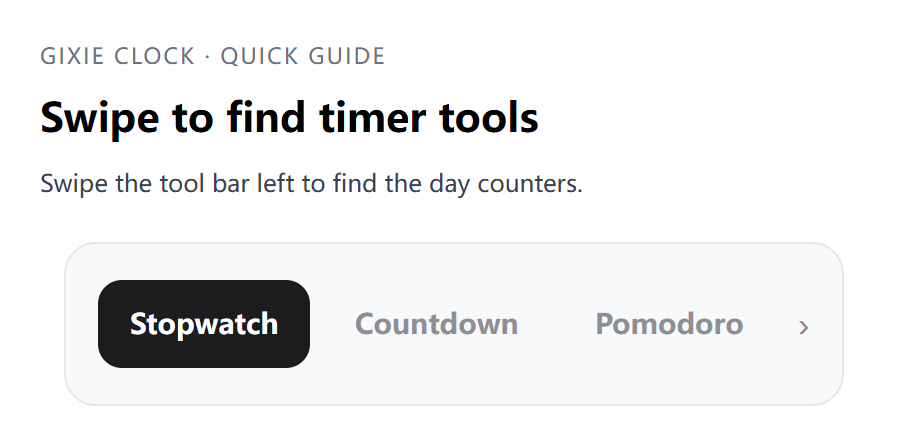
Tap Timer, then choose Stopwatch, Countdown, Pomodoro, Days left or Days elapsed in the tool bar. Swipe the bar left to reveal tools farther along.
Stopwatch
- Open Timer → Stopwatch.
- Tap the triangle start icon to start timing on the clock.
- Tap the flag icon to record a split, or the pause icon to pause.
- To clear the result, pause first, then tap the circular-arrow reset icon.
Record any results you want to keep before resetting. For the stopwatch and countdown, keep the app on the corresponding timer page and keep Bluetooth connected. Leaving the timer page pauses these timers.
Countdown
- Open Timer → Countdown.
- Set hours, minutes and seconds using the time wheels.
- Tap the start icon. While running, tap pause to pause and start to resume.
- When the alert sounds, press any one of ① Decrease, ② Increase or ③ Function to dismiss it.
To change the duration, pause and use the reset icon first.
Pomodoro
- Open Timer → Pomodoro.
- Tap the durations for Focus, Short Break and Long Break, edit the minutes, and tap Save.
- Tap the start icon. You can pause, resume or use the skip icon to move to the next phase.
Once started, Pomodoro can keep running independently. While a Pomodoro session is active, ① Decrease resets it, ② Increase starts/pauses/resumes it, and ③ Function skips the phase. If a completion alert is sounding, the first press of any button only dismisses that alert. See Buttons and everyday use.
Count days up or down
- Open Timer → Days elapsed or Timer → Days left.
- Choose Start date for elapsed days or Target date for remaining days.
- Check Day preview and choose whether to enable Leading zeros.
- Tap Save and display, wait for Saved and applied, and check the clock.
Days are calculated using the clock's time zone. Same-day and negative results show 0. Turn off Show on clock to stop displaying the count; the saved date is retained.
Display network data
First connect the clock to Wi-Fi.
- Open Light → Clock mode and tap the gear on Network data mode.
- Find the desired source, such as stocks or cryptocurrency, and tap its gear.
- Enter or choose the requested details, such as market, stock code or coin.
- Tap Test and wait for Test passed and a result.
- Tap Save and use. If the settings were saved but switching was not confirmed, tap Retry switch.
- Check the clock. If it still shows another mode, return to Clock mode and tap the Network data mode card. Turn off Cycle display if you want to stay on network data. If it is already showing network data, do not select the mode again.
Testing checks the entered settings; you still need to tap Save and use. Update speed depends on the network and source. If data stops updating, check Setting → Wi-Fi, then test the source again.